


Free Shopify WhatsApp chat button section
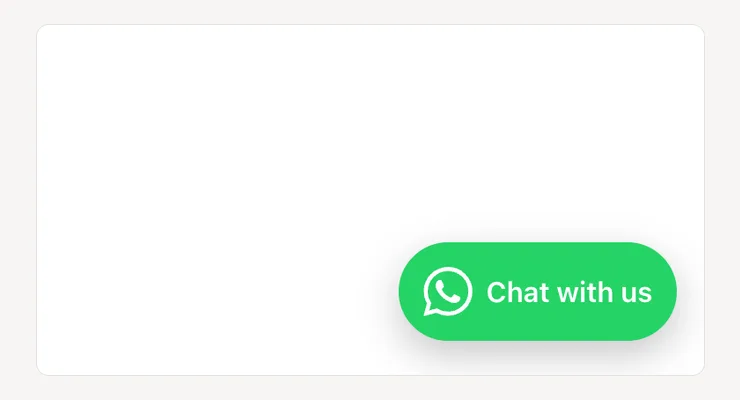
A floating button that opens a WhatsApp chat with your business, with a ready message that names the product or page the shopper is on.
- Price
- Free, no monthly fee
- Works on
- Any page (add it once, in the footer area)
- In the theme editor
- Pixel Caption WhatsApp
- Made by
- The Pixel Caption growth team
The problem it solves
Indian shoppers ask before they buy, and most would rather ask on WhatsApp than fill in a form or write an email. If there’s no quick way to reach you, a question about size or delivery ends in a closed tab.
A plain chat link leaves your team guessing too. “Hi, is this available?” could mean any of your products, so the first few replies go on working out what the shopper was looking at.
What it does
A floating button that opens a WhatsApp chat with a ready message naming the product.
Names the page
When tapped, the chat opens with your ready message plus the product or page name and its link, so your team knows what the shopper means. You can switch that off.
Add it once
Add the section once in the footer area and the button shows on every page. Type your number with the country code, like 919811234567; spaces and dashes are removed.
Where it shows
Pick the left or right side, and phones and computers, phones only or computers only. On computers a short label like “Chat with us” sits next to the icon.
Clear of your sticky bar
Raise the distance from the bottom if it sits over a sticky Add to cart bar. WhatsApp green is the default colour. Until a number is added, only you see a reminder in the editor.
Settings in the theme editor
Every setting below is in the section’s code, pixelcaption-whatsapp-button.liquid. Change any of them in Customize, with no code.
| Setting | Type | Default |
|---|---|---|
| WhatsApp number with country code | Text | Empty |
| Ready message | Text | Hi, I have a question about |
| Add the product or page name and link to the message | Tick box | On |
| Text next to the icon (computers only) | Text | Chat with us |
| Side | Choice | Right |
| Show on | Choice | Phones and computers |
| Distance from the bottom | Slider, 12 to 120 px | 20 px |
| Button colour | Colour | #25d366 |
How to install
About five minutes in your Shopify admin, with no coding. These are the same steps as the guide in the .zip.
Download the .zip
Tap Download below. The .zip holds the section file, sections/pixelcaption-whatsapp-button.liquid, and an install guide with a button that copies the code.
Make a backup copy
In Shopify admin go to Online Store, then Themes. Click the three dots next to your live theme and choose Duplicate, so you can publish the copy if anything goes wrong.
Create the section file
Click the three dots again and choose Edit code. Under the Sections folder click “Add a new section”, name it pixelcaption-whatsapp-button and pick Liquid if Shopify asks.
Paste the code
Select everything in the new file and delete it. Paste the code from the section file in the .zip, then click Save.
Add it to your page
Back in Themes, click Customize and open any page (add it once, in the footer area). Click “Add section”, pick Pixel Caption WhatsApp and click Save.
Set it up
Type your WhatsApp business number with the country code, like 919811234567. Write the ready message. Tick the box to add the product name and link.
Good to know
- Raise “Distance from the bottom” if it sits over a sticky Add to cart bar.
Related components
Other free sections that work well next to this one.
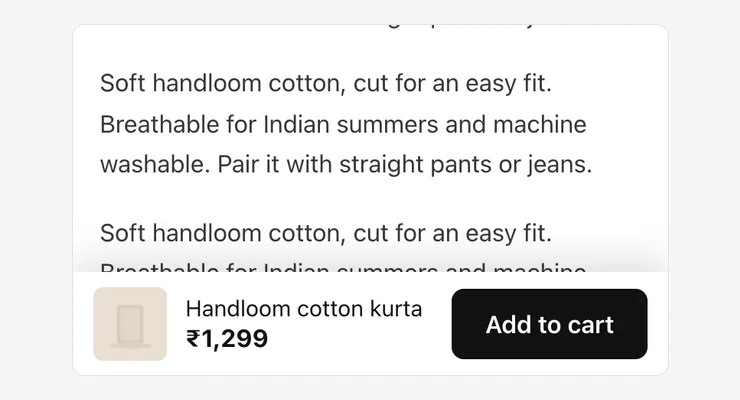
- Sticky add to cartKeeps the price and Add to cart in reach on phones once shoppers scroll past your button.See the section
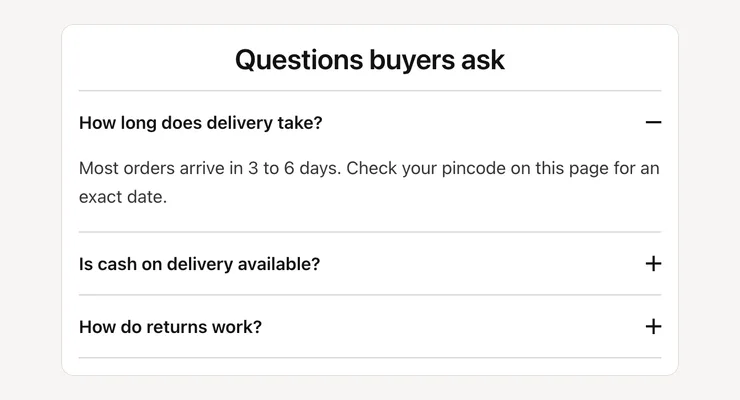
- Product FAQQuestions and answers that open one at a time, with FAQ data for Google and AI search.See the section
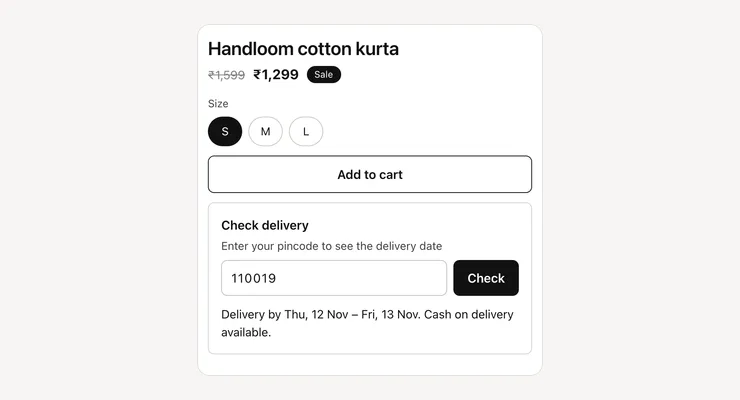
- Pincode delivery checkerShoppers enter a pincode and see the delivery date and COD option right under Add to cart.See the section
Get the WhatsApp chat button
One short form and the .zip is yours, with install notes. It comes by email too.
WhatsApp chat button
- The section file and install notes
- Works in your theme editor, no app
- No monthly fee