


Free Shopify pincode delivery checker section
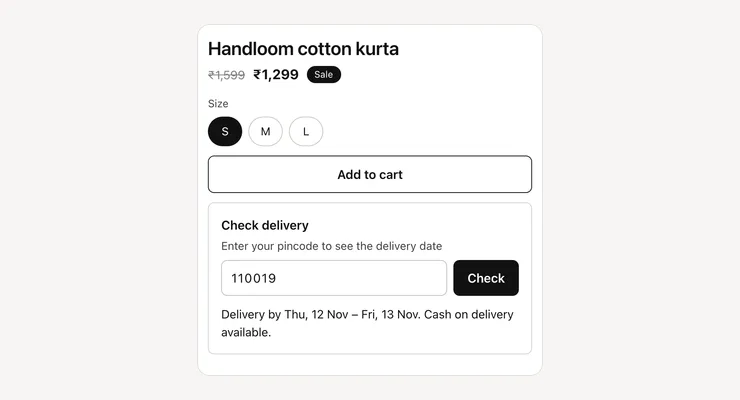
Shoppers type their pincode and see the delivery date and whether cash on delivery is available, right under Add to cart. No app and no API: it runs on delivery rules you set.
- Price
- Free, no monthly fee
- Works on
- Product pages
- In the theme editor
- Pixel Caption Pincode
- Made by
- The Pixel Caption growth team
The problem it solves
Indian shoppers want two answers before they pay: when will it arrive, and can I pay cash on delivery? When the product page doesn’t say, they leave to ask on WhatsApp or Instagram, or buy from a store that answers it on the page.
Many pincode apps charge a monthly fee or call a courier API on every check. For most D2C stores a few rules are enough: metros arrive sooner, some areas get COD, and a few pincodes you don’t deliver to yet.
What it does
Shoppers enter a pincode and see the delivery date and COD option right under Add to cart.
Dates from your own rules
Add one Delivery rule per area, with the starts of pincodes (110 covers all of Delhi) and the fastest and slowest days. The longest match wins, so a rule for 1100 beats one for 110.
COD shown up front
Each rule says whether cash on delivery is available there, and the answer shows next to the date. Untick “We deliver here” on a rule to tell those pincodes you don’t deliver yet.
Sits beside Add to cart
The section moves itself under or above your theme’s own Add to cart form, on any theme. Choose “Where this section sits” if you would rather place it yourself in the editor.
Remembers the pincode
Sundays can be left out of the day count. The pincode is saved in the shopper’s browser, so the date shows again on the next product they open, and a wrong pincode gets a clear message.
Settings in the theme editor
Every setting below is in the section’s code, pixelcaption-pincode-checker.liquid. Change any of them in Customize, with no code.
| Setting | Type | Default |
|---|---|---|
| Where to show it | Choice | Under Add to cart (recommended) |
| Heading | Text | Check delivery |
| Label | Text | Enter your pincode to see the delivery date |
| Box placeholder | Text | e.g. 110019 |
| Button text | Text | Check |
| Fastest, in days (all other pincodes) | Number | 3 |
| Slowest, in days (all other pincodes) | Number | 6 |
| Cash on delivery available | Tick box | On |
| Don’t count Sundays | Tick box | On |
| Delivery message | Text | Delivery by {date}. |
| When COD is available | Text | Cash on delivery available. |
| When COD isn’t available | Text | Prepaid orders only. |
| When you don’t deliver there | Text | Sorry, we don’t deliver to this pincode yet. |
| When the pincode is wrong | Text | Enter a valid 6-digit pincode. |
| Button colour | Colour | #121212 |
| Button text colour | Colour | #ffffff |
| Corner rounding | Slider, 0 to 24 px | 8 px |
| Space above | Slider, 0 to 60 px | 8 px |
| Space below | Slider, 0 to 60 px | 8 px |
| Setting | Type | Default |
|---|---|---|
| Pincodes or starts of pincodes | Text box | 110, 122, 201 |
| Fastest, in days | Number | 1 |
| Slowest, in days | Number | 2 |
| Cash on delivery available | Tick box | On |
| We deliver here | Tick box | On |
How to install
About five minutes in your Shopify admin, with no coding. These are the same steps as the guide in the .zip.
Download the .zip
Tap Download below. The .zip holds the section file, sections/pixelcaption-pincode-checker.liquid, and an install guide with a button that copies the code.
Make a backup copy
In Shopify admin go to Online Store, then Themes. Click the three dots next to your live theme and choose Duplicate, so you can publish the copy if anything goes wrong.
Create the section file
Click the three dots again and choose Edit code. Under the Sections folder click “Add a new section”, name it pixelcaption-pincode-checker and pick Liquid if Shopify asks.
Paste the code
Select everything in the new file and delete it. Paste the code from the section file in the .zip, then click Save.
Add it to your page
Back in Themes, click Customize and open product. Click “Add section”, pick Pixel Caption Pincode and click Save.
Set it up
Open Delivery rules in the section and add one rule per area. Prefixes are the first digits of the pincode: 110 covers all of Delhi. Set days for the fastest and slowest delivery in each area, and tick COD where you offer it. Set the delivery days for pincodes that match no rule.
Good to know
- The longest matching prefix wins, so a rule for 1100 beats a rule for 110.
- Leave “Where to show it” on “Under Add to cart (recommended)”. The section moves itself there on any theme.
Related components
Other free sections that work well next to this one.
Get the pincode delivery checker
One short form and the .zip is yours, with install notes. It comes by email too.
Pincode delivery checker
- The section file and install notes
- Works in your theme editor, no app
- No monthly fee